Gadget Wisdom

Author: David Shanske

Registration time

2011-09-25 06:23:49

Website

https://david.shanske.com/

Email

david@shanske.com

All posts by David Shanske

1 Response

More on the Analog Loophole

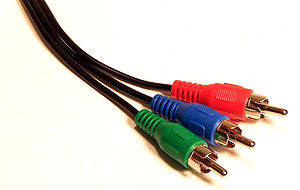
Component video cable with RCA connections.
Image via Wikipedia

In our previous post on the subject, we discussed the Analog Loophole, and how we were using the HD-PVR 1212 to capture HD video.

We’d had some problems, and reduced the quality to 720p and AAC analog audio only. After a week, on Thursday night we switched back to AC3 digital audio delivered using an optical toslink cable. So far, the recordings are stable. Our next step will be to switch from 720p only to 1080i only. And we ultimately hope to allow both 720p and 1080i to record, so that we can record both HD formats that are broadcast without any scaling.

But, what if they close the Analog Loophole? There is a solution out there. GeekTonic recently had a guest-post on the subject. It discusses the HD-Fury2 It provides an HDMI input, and a component video output. The HD-Fury2 and the HD-PVR will work together, so even if they turn off the component outputs, this will enable an analog path.

Why do we need the analog loophole? Well, our cable company encrypts almost everything. If they missed something, any day it could be gone. We have, in addition to the HD-PVR, a Silicondust HDHomeRun, with is a dual digital tuner that works with cable and broadcast. One day, we came home and they’d encrypted TNT-HD, one of the few channels outside of broadcast they offered.

We use the Silicondust HDHomerun for unencrypted cable and broadcast, mostly to allow us to record cable and broadcast channels simultaneously, although us not to have to rely exclusively on the one cable box hooked into the system. The HDHomerun is a very well supported device. The developers are very involved, and continue to release new firmware. The latest version of the firmware improves channel scanning and handling, among other things.

Like anything, you have to find the solution that works for you. Even if we lost cable entirely tomorrow, we could switch to Broadcast and maintain a good selection of programming. We choose however, to continue to push what we can do and learn and explore new things.  More on this to come.

Reblog this post [with Zemanta]
Published on August 16, 2009
Full Post
3 Responses

The HD-PVR and MythTV

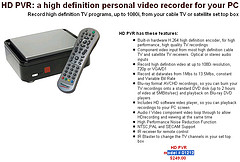
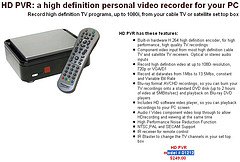
HDPVR
Image by Geek Tonic via Flickr

For years now, we have run a MythTV DVR. It is a Linux-based software package that turns a computer into a digital video-recorder, complete with scheduling of programs.

We started with a single cable box with an active firewire connection to change the channel and a PVR-250 card we got cheap. That encoded the composite output from the box to MPEG2.

Eventually, we got the hang of firewire, discovered a bunch of tricks to get it to cooperate without crashing, and we’re working almost entirely off of cable with firewire, using a digital tuner to add redundancy on broadcast stations.

Then one day, the cable company shut down every firewire connection. The channel changing still works, but not streaming directly from the box. So we ordered the HD-PVR 1212.

The HD-PVR turns high definition component video and analog or digital audio into H264-encoded files. Ultra-compressed, and requiring a good CPU to decode. It exploits the so-called “analog loophole“, allowing one to record HD video off of an HD source.

And MythTV will support it in Version 0.22. Some have backported the device support to 0.21, the current stable version. So, we upgraded our installation(after a backup) to the 0.22 ‘bleeding’ version. You use development versions at your own risk. Unless you are contributing to the process with information, complaints about things not working will be ignored, mostly.

The HD-PVR seemed very buggy under Version 0.22, capturing at all resolutions, 480i, 720p, 1080i, with AC3 audio. And all of the files were filled with corruption, making it hard to play them back. So, the other night, despite the notation that the ability of the HD-PVR to handle multiple resolutions at a time had been stabilized, we reverted to 720p and AAC analog audio. So far, it has made everything rock solid. We’re doing tests of this over this weekend, after which we’ll try bringing back AC3 audio and/or 1080i, to see how high a quality we can get with complete stability.

The HD-PVR is a decent device that is developing better Linux-based support.  It is unfortunately the best option for recording HD video from other sources, as any digital options are shut down by the content providers.

More on our efforts in this area when all tests are complete.

Reblog this post [with Zemanta]
Published on August 7, 2009
Full Post
0 Responses

Fedora and Netbooks

In a recent blog post, Michael Dehaan, a software developer comments on his experience with the Ubuntu Netbook Remix versus Fedora 10. Dehaan points out that Fedora could learn a lot from it.

We can’t disagree. Openness and sharing is what Linux is all about. Fedora doesn’t have a spin for netbooks. There is a Special Interest Group for “Fedora Mini”, which was originally intended for netbooks, but has the expanded focus of other devices.

A lot of the work in a mini distribution is reducing dependencies. While hard drive space makes extra program installation not as much of a problem, current trends toward speed, efficiency, and bandwidth limiting suggest that we should be looking at this. For example, Fedora installs Bluetooth services on a system regardless of whether or not there is a bluetooth adapter installed. It installs smart card authentication on everything. And the default option during an installation is to configure software packages after installation, not before.

Michael seemed to have a lot of trouble with Fedora on Netbooks. We did not with our little MSI Wind. Initially, there were no drivers for the wireless card, but we were able to compile them. Then, because we don’t like unstable drivers, even if they did work, we swapped the stock card for an Intel one with great Linux support.

We’ve tried Ubuntu Netbook Remix, and it does offer a lightweight environment and a good launcher. But there are good launchers available of similar design available for Fedora. The lightweight LXDE environment is available through Fedora, as is XFCE, which in its latest version has a more traditional GUI design than its predecessors.

The fact is that we must agree and disagree. What Fedora lacks is a good lightweight spin. Which is a shame. Fedora has all the tools to be lightweight with personal tweaking.

There are things in the works though. The Fedora LXDE spin is set to be offered as part of Fedora 12, and an XFCE spin which has been offered for several iterations of Fedora.

What we would like to see, and perhaps we should suggest it, is increasing the number of default setup profiles in the default DVD installation, or allowing a custom profile to be loaded in. Currently, the Kickstart process, which is designed mostly to automate administrator installations for multiple systems, allows for this, but we’d like to see a Fedora supported initiative in this direction. A minimalist server profile, a minimalist desktop profile, etc.

Ubuntu offers a Desktop and a Server LiveCD as its primary installation media. We like the fact Fedora offers both this and a DVD where the most popular softwares can be installed on multiple systems without repeated downloads. We just think that the default installation needs to be streamlined, or offer the options to be streamlined without having to hack together a customer version of Fedora or download multiple different LiveCDs. We, as we said, could do this using Kickstart, but we’d like it if Fedora took the lead on it as well.

That said, the full version of Fedora 11 works wonderfully on our netbook, and while we’ve tried Ubuntu Netbook Remix on an Eee…we’ll stick with what we are familiar with.

Published on July 13, 2009
Full Post
1 Response

We Still Want a Kindle – But We Don’t Want To Want It

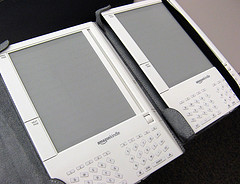
Amazon Kindle
Image by davidking via Flickr

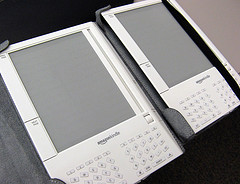
Last week, Amazon lowered the price of the Kindle to $299, a reduction of $60. We want a Kindle, but we don’t want to want a Kindle. It is still a bit pricey for its limitations.

What does that mean? Well, the Kindle is the greatest e-book reader out there…not because of its hardware, but because of the sheer amount of titles Amazon offers and the ease of getting them through the Kindle. The smartest thing Amazon could do is license the Kindle source to anyone, and we still await that.

Reports indicate that Amazon is exploring ad-supported Kindle books for additional revenue. Publishers are afraid Amazon will force them to lower their profit margins on e-books. Publishers hope new players like PlasticLogic, FirstPaper, ScrollMotion, and Google‘s e-publishing service could help turn the tables in their favor. But so far, Amazon has an early lead.

We are hoping competition does come along. Google plans to sell readers online access to digital versions of various books, and the books would be cached in their browser when offline. This seems like an improved system. A simple browser plugin could handle this. They appear, for their early copyright-free public domain books, to be working with the ePub format, which is an official open standard.

Our fondest dream is to use the Kindle to free up space. We have so many shelves of books. Some of them could be digitized. We’ve done this when we rid ourselves of most of our VHS cassettes and started to replace audio cassettes with CDs.

Reblog this post [with Zemanta]
Published on July 13, 2009
Full Post
0 Responses

Keep Thinking About the Kindle

NEW YORK - FEBRUARY 09:  A reporter holds the ...
Image by Getty Images via Daylife

We’ve maintained, and continue to maintain the Kindle is not yet at the price point where the upfront cost is offset enough by the benefits. Endgadget, however, reports that Amazon has dropped indications it sees the Kindle readers and Kindle books as two separate businesses.

This is actually good for us…the people who want e-books to become more ubiquitous. We don’t want the paper book to go away though. We believe there is a place for it in this world. Our concern is that the lowering of the hardware will produce an increase in the price of the book itself. Currently, a Kindle book can average $9.99, more or less. A hardcover book could be over double that. On a $9.95 book, an analysis suggests Amazon only makes 61 cents.

In the fight of Kindle vs. Netbook, we opted for netbook, because it is a multifunciton device, compared to the Kindle, which is good for one thing only. But imagine if the Kindle reader became a software program available for all operating systems? What if Amazon licensed the reader software to other companies to allow the books to be read on many systems? What could that mean for the future?

The latest confusion over the Kindle is its DRM policy. Apparently, there is a limit to how many times you can download the book, even though you have bought it, and it varies from publisher to publisher…even better, no one at Amazon seems to know how to find out what the number is. The limit may actually be on the number of devices you can have the book on simultaneously, but as of now, it is still unclear. Ultimately, we remain curious what limits are put on the free distribution of content you bought amongst your own devices. Since your ownership of the book now depends on a third-party…namely Amazon, supporting your device, how does this effect your life?

So, what are the alternatives? We’ll be looking into them a bit more, as we want to take advantage of them.

Reblog this post [with Zemanta]
Published on June 22, 2009
Full Post
1 Response

Obama the Nerd President

http://www.youtube.com/watch?v=yW7OPByRGDY

John Hodgman, best known as the PC in Apple’s insulting the competition ads, spoke at the Radio and TV Correspondents Dinner. Hodgman goes into nerd and geek versus jock as philosophical terms, and gives Obama a test to definitively prove once and for all if he is a nerd, a geek, or possibly a space alien sent to enlighten mankind(we’re kidding). Well, either way, it is worth checking out.

Published on June 22, 2009
Full Post
1 Response

Fedora 11 – Palimpsest Saves the Day

Fedora Linux 10
Image by Dekuwa via Flickr

Yesterday, those of you following our tweets know that we continued our Fedora migration plan. The plan was sidetracked when the new Fedora 11 monitoring advised us of a hard drive problem.

SMART, System Monitoring and Reporting Tool, is built into every hard drive, and does not seem to be utilized under Windows(feel free to correct us on this. It might be hiding there somewhere). Linux has always offered a monitoring daemon, but now that is coupled with Palimpsest Disk Utility, a frontend to the disk functions of DeviceKit, so alerts come to the desktop. DeviceKit is a replacement for the older HAL system, and creates a uniform interface.  “This is a simple system service that a) can enumerate devices; b) emits signals when devices are added removed; c) provides a way to merge device information / quirks onto devices.

So, after letting it do a check to confirm, we swapped out the drive, and used it as an excuse to clean the interior of the computer and add extra ventilation, and resumed installation.

The two machines done are part of our MythTV system, where simple computers take the place of cable boxes, so nothing is stored on the drive except the software. All the video comes over the network from the backend(the last machine to get Fedora 11). But had the hard drive contained critical data, this feature would have prevented a major disaster.

In a disappointment, both machines, which run Nvidia video, did not work with Plymouth by default, but the boot on them is so fast you hardly see the splash screen anyway.

As a final measure, the remaining Fedora 10 machine will now download its updates directly from the internet, allowing us to delete our 30GB Fedora 10 Repository. The Fedora 11 machine will continue to use the assembled Fedora 11 repository.

The remaining machine is the hardest because it is where all the data is stored. Fedora Upgrade Time is a time to think about new hardware. Perhaps a hard drive might need to be replaced, etc. Migration of large amounts of data is difficult. The system must be slowly backed up and emptied, using a combination of optical burns, backup hard drives, etc. It will take a bit more work.

We continue to find new things to love about Fedora 11. The continual improvement to hardware handling is one of them. More to come.

Reblog this post [with Zemanta]
Published on June 18, 2009
Full Post
0 Responses

First Thoughts: Fedora 11

Image representing Fedora as depicted in Crunc...
Image via CrunchBase

We plan to offer more thoughts later, as we will be doing some field-testing. We have installed Fedora 11, code named Leonidas on a MSI Wind U100 netbook which we will be taking with us on a trip this weekend, allowing us to explore it before rolling it out to other systems.

Our initial impressions are that F11 is a winner. It has been cleaned up at every level. We installed it from scratch and proceeded to install everything we routinely use on a mobile system, including Firefox(with Xmarks, formerly Foxmarks to store our bookmarks), Dropbox for our Documents and some configuration files, and Adobe Air so we can run our Twitter client. There was a problem with Adobe Air, but a quick net search found us the solution(a symbolic link so Air could find a library). The whole process took very little time.

Plymouth, Fedora’s graphical boot loader, now supports Intel based graphics cards, which are found in a majority of productivity based notebooks and netbooks. Since our previous systems didn’t support it by default, and we saw no need to override that, this is the first time we’ve seen the graphical loader outside of one try. Plymouth is plug-in capable for different boot screens. The default one is merely a circle that gradually fills in until it is complete. We’ll have to take a look at the alternatives there as well.On the other hand, it is a boot screen. We don’t want to spend too much time looking at it, especially if it slows things down to render something fancier.

Fedora also has changed the default volume group name to include the hostname…a minor touch, and the ext4 file system. Anaconda, the Fedora installer, continues to be fairly user-friendly. Fedora has rebuilt many areas of the program, but the feel is pretty much the same for installation.

Into the OS itself, Fedora 11 had a goal of a 20-second boot time. It isn’t quite achieved on a netbook, but it came fairly close. The netbook is the only system we use that doesn’t support the 64-bit architecture, so we used the 32-bit, which has now been rebased as i586 instead of i386 We also enabled Presto to reduce update sizes. On our first update, we had a 91% download savings with no noticeable problems.

The new versions of Gnome and Firefox look subtly different, but we haven’t had a chance to experiment with them yet, beyond configuring things the way we want them. We will report back on this.

Finally, as this is a mobile computer, Fedora 11 boasts new power saving measures, including an update to the handling of relatime backkported from the 2.6.30 kernel, which was just released, but after the Fedora 11 release. We look forward to seeing how these power measures enhance battery life.

So, in the end…Fedora, better than ever, no show-stopping problems we’ve seen so far…and more to come.

Reblog this post [with Zemanta]
Published on June 11, 2009
Full Post
1 Response

The Latest on Hulu and Netflix

Time to catch up on the latest from these two services.

  • Playboy seems to think Hulu is coming to the Roku Video Player. That would certainly please us. But Roku, the creator of the player, has insisted they have not made any public statements regarding Hulu and they don’t know where Playboy gets their information. Roku currently supports Amazon Video on Demand and Netflix, and promised as many as ten new channels by the end of the year but has not yet delivered.
  • Netflix appears to not recognize Puerto Rico as part of the United States and is blocking the territory’s use of its Watch Instantly feature, something Hulu once did. It explicitly excludes anything outside of the fifty states and the District of Columbia.
  • Hulu has added its own application for playing outside of a browser which works on Windows and Mac(but not Linux). In a ‘nod’ to Boxee, certainly a more developed product, the new product originally advised you to kill Boxee on Macs to avoid conflicts. This has since been changed. Hulu’s Terms of Service state that: “You may not download, install or use the Hulu Software on any device other than a Personal Computer including without limitation digital media receiver devices (such as Apple TV), mobile devices (such as a cell phone device, mobile handheld device or a PDA), network devices or CE devices (collectively “Prohibited Devices”).” It does not prohibit hooking a computer to a TV, but it seems to suggest this is the thing Hulu is trying to forbid, which does not bode well for them.
Reblog this post [with Zemanta]
Published on June 2, 2009
Full Post
2 Responses

Packing your Bag

Five common USB connectors (left to right: mal...
Image via Wikipedia

Recently, we did a post on behalf of Infrequent Flier on the subject of packing a bag with your mobile electronics. We wanted to explore the idea further, as such a bag wouldn’t just apply to air travel…there are considerations for every time you go anywhere. Here are some things to consider when packing your mobile bag.

  • Power
    • Chargers – Every day on the go we use several chargers. For our cell phone, our music players, our notebook. Try to unify these. Instead of four power bricks, use USB-based charging cables. Then you can only bring along a single USB to AC Adapter.
    • USB and Batteries – Several companies, including Duracell and Kensington, make USB portable battery packs, that can be charged via USB, and can charge mobile devices that have USB based cables. Sticking a small one of these in your bag can be critical in emergencies. You may also need to charge standard AA or AAA batteries. There are a variety of USB battery chargers, but we switched to USBcell, the battery has a built-in USB charger. We keep two of them for our AA-based digital camera.
    • Extension cords and Surge Protectors – There will be cases when you wish to share electricity with others. In this case, a cheap dollar store power splitter or multi-extension cord is useful to carry around. We recommend using the Belkin Mini Surge Protector, which has three outlets and two USB charging ports. Two useful add-ons to this would be an extension cord for hard to reach areas and/or a 3 to 2 prong converter in the event you find only two-prong outlets.
  • Cables
    • Network – Wireless is wonderful, but don’t be caught without a small network cable in case you have to physically connect to a network.
    • Earphones – Keep a pair of earphones in your bag. Not only will the people around you appreciate it, but a pair of cheap earbuds cna double as earplugs, reducing background noise so you can relax.
    • Headphone Splitter – Allows you to share the audio output of a device with a friend.
    • USB Cable – A standard USB cable to hook into peripherals should always be in your bag.
    • Retractable Cables – A variety of companies produce retractable cables now of varying qualities that can increase the space saving qualities of your bag. Ultimately though, a regular cable may be cheaper and is certainly more durable in the long run. Do your homework though.
  • Emergency Items
    • Blank CD/DVD – You never know when you might need to burn something or have it burned in a hurry.
    • Live CD/USB – With a bootable operating system on a CD or USB drive, you can turn any computer…for a time, into your personal system. Alternate options include a series of portable applications on your USB drive that would work with any Windows-based computer.
    • DropBoxDropbox is a file syncing service that is available for Windows, Mac, and Linux that syncs the contents of a folder to its servers and can be used for multiple systems. If your computer goes bust, you can ensure your data was synced during your last network connection.
  • Portable Electronics
    • Cell Phone – We’re not going to tell you what sort of cell phone to get. There are a variety of options. Find the one that is good for you.
    • Portable Media Players – You can go with music, video, etc. You can even now use your cell phone. Again, scale this to your needs. We have two different ones, one small and one larger. The small, a Sansa Clip, is our ‘throwaway’ player. It is cheap, durable, and does what we want it to.
    • E-Book Readers – You can read information now on your cell phone or notebook, but there is a place in this world for dedicated devices. If you feel the cost is justified…otherwise, a good book is much cheaper and is even free at your local library.
  • Goodies and Misc.
    • Refreshments – Sticking a granola bar or some other long-lasting reasonable healthy snack in your bag will pay off in the long run when you are starving and need something quick. Equally useful is something to drink.
    • Pen and Paper – For when all electronics fail…or when you simply want to give your contact info to a less tech enabled person, stick these into your bag.
    • Cleaning Cloth – A microfibre cloth is perfect for cleaning the dust off your screen.
    • Wipes or Hand Sanitizer – You get dirty too.

Now, we are assuming you are lugging around a notebook of some sort. If you are a frequent ‘mobile warrior’, consider downsizing. Don’t lug around a 17″ desktop replacement, go for a 12-14″ screen…or even a netbook with a 10″ screen. These netbooks are inexpensive, and becoming popular for their easy portability. Remember, you can always come home to your fully functional machine.

Go smaller with your laptop bag as well. Try to find the smallest bag that neatly fits all of your things and make the hard decisions about what to leave out. No one wants to carry around too much.

In order to avoid needing to carry a spare battery, consider the following tips:

  • Dim the Brightness of your Screen – Many notebooks have a setting for dimming based on inactivity. Try to maximize your power saving options.
  • Go with an Extended Battery – Many notebooks have multiple battery options. Go with the best one.
  • Avoid using your Optical Drive -  Nothing drains power like the DVD/CD drive on your system. Try to copy the information to your drive before you leave, even if it is a movie or such you wish to watch on the road, you can rip it and delete it when you’re done.
  • Consider an SSD drive – These drives are not quite 100% yet. Their price is starting to come down, and the higher quality drives will eventually be cost-effective for the individual. For now though, the inexpensive ones have some problems, but with proper use(there are many tutorials on this), they can improve your experience. We’re waiting on this one though.

Do you have any suggestions of your own?

Reblog this post [with Zemanta]
Published on June 1, 2009
Full Post

Get New Posts By Email