Gadget Wisdom

1 Response

Flat Out Awesome: Why Desk Mats Are the Unsung Heroes of Your Workspace


This is one of those topics I hadn’t given much thought to over the years was desk mats. The most popular reason to have a mat on your desk was always for your mouse, but then optical mice came in and made that less needed, and I use a trackball anyway. But more recently, due to the fact I have been trying a lot of different type of keyboards, have become more aware of those accessories around it.

Why a Desk Mat?

  • Protecting the surface of your desk
  • Noise reduction as it reduces vibrations from your keyboard
  • Prevents a keyboard from sliding around your desk.
  • Aesthetics…they come in a variety of colors and designs.
  • If you do have an optical mouse, some surfaces aren’t friendly to it.
  • Cushions your wrist…similarly or in addition to a dedicated wrist rest.

So, I decided to take the same tactic I do with the mat in my bathroom. I have more than one color, and occasionally, when I need a change, I rotate it to change the feel of the place. I bought this mat on Amazon for only $8. You can go even less expensive, or more luxurious. You can choose a larger one, depending on your desk, or a thicker one to reduce vibrations even more. I even saw one on sale not long ago with a built in LED light border if you want your desk to look like something from the movie Tron.

I even carry a slightly smaller mat now in my travel bag to put down my travel keyboard on. It really helps in the uneven places


Published on December 5, 2024
Full Post
0 Responses

There Is No Place Like Homelab- Why You Need One In Your Life

When I started writing about technology, I don’t think the term homelab existed. I only started hearing it more recently. But like many things, I apparently had one before the term existed. Homelab usually refers to a computer or computers used within your home to experiment. People self-host applications in their homelabs, they build network attached storage, they host and serve their media files. Some people use it to experiment with technologies they might need to or wish to use professionally.

The communities of hobbyists and tech enthusiasts have changed a lot over those years. I still remember when buying a single megabyte of RAM was a big deal, or having a whole 40MB of hard drive space. There is so much out there to experiment with and I’ve been running a homelab without even realizing that’s what I could call it.

A homelab can be as simple as an old retired computer you run a server on. Or it could be a custom built system for purpose. I’ve had both. And I’ve repurposed numerous times before the end of computer hardware’s life cycle.

I’ve written a lot about topics that fall under that previously…self-hosting, storage, media, etc. So, thinking about this under the banner of homelab gives me the chance to talk about this idea of running your own applications on either your home server, or server space you rent outside your house, and the infrastructure I’ve created to do just that. And there is always a new application or new need to experiment with.

A quick warning though. If you experiment in your own home, you do have to be aware that…should you share that home with someone else, that your experiments may affect their quality of life. For example, if you are playing with home automation, they might not appreciate if you cover up the light switches so you can use smart bulbs they can’t control.

That said, let’s get started.

Published on December 4, 2024
Full Post
0 Responses

Sitting At The Docker By The Drive Bay: TrueNAS Scale Switches to Docker – But Why Docker?

As part of my continuing, Building My NAS series, I wrote about choosing TrueNAS as the software powering my homebuilt network attached storage device. One of the features of TrueNAS Scale has been the ability to run various self-hosted cloud applications. In the latest version of TrueNAS, the backend for those applications switches to Docker. Docker is arguably the most popular way to deploy pre-built complete applications. It not only isolates each application into its own container, but it simplifies the process of deploying and configuring them.

While the number of applications offered directly in TrueNAS, the switch to Docker allows for tens of thousands of public docker files to set up many more applications than are officially supported.

After years of installing applications on the servers that host them, I’ve reluctantly embraced Docker as a solution for when specific combinations are needed, such as specific versions of software. Looking at why other people use it, it is the…”it just works” philosophy. You can install an application, reinstall it cleanly, isolate it from other things…simplicity has its advantages.

It makes Docker a great way to quickly switch from third party services to your own. And combined with a system like TrueNAS providing storage solutions, it can create the basis for a complete solution for yourself and your home.

Published on December 1, 2024
Full Post
0 Responses

Best Low-Profile Travel Keyboards for Working Anywhere

I recently took two trips out of town. I have been evolving my hotel room set up for years after my employer had me spend extended times in hotel rooms and it always involves an external mechanical keyboard. I had written about the folding keyboard search as part of this previously. In that article, I only mentioned the Royal Kludge F68 in that context as a mechanical low profile keyboard that folds. But I didn’t talk about low profile keyboards themselves. I’m limiting myself to mechanical keyboards per my preference for them.

Updated note: If you want a broader comparison of mechanical, foldable, compact, and commuter-friendly boards, see my full guide to the best travel keyboards in 2026.A low profile mechanical keyboard, also called an ‘ultra-slim’, even in a larger form factor, can take up less space than a comparable keyboard and still have some of the advantages of mechanical keyboards. Like full size mechanical keyboards, you have keyboards with hotswappable switches and ones without. While they come in larger sizes, for travel a 75% or smaller makes sense.

Disclosure: As an Amazon Associate I earn from qualifying purchases. Product links may earn a commission at no extra cost to you.

Quick Picks: Low-Profile Mechanical Keyboards for Travel

If I were choosing a low-profile mechanical keyboard for travel today, these are the three I would start with:

Best for Keyboard Why I’d choose it Check price
Best overall Keychron K3 QMK A practical 75% low-profile mechanical board that gives you real switches and customization without taking up as much room as a standard mechanical keyboard. Check price on Amazon
Best premium option NuPhy Air75 V2 A nicer-feeling 75% low-profile board if typing experience matters enough to justify carrying something a little more substantial. Check price on Amazon
Best smaller option NuPhy Air60 V2 A more compact choice if saving bag space matters more than having the extra keys of a 75% layout. Check price on Amazon

My pick: I would start with the Keychron K3 QMK if you want a mechanical keyboard that is still genuinely practical to travel with. The Air75 V2 is the premium alternative, while the Air60 V2 makes more sense when every inch of bag space counts.

For non-mechanical keyboards, folding options and cheaper ultra-thin boards, see my complete guide to the best travel keyboards in 2026.

Some people find the low profile keyboards better for ergonomics. Also, if you are coming from a laptop keyboard, the angle can be similar enough, but it is definitely a more premium experience.

I tried out the Keychron K3. There are several revisions and variants, and the newer ones have QMK/VIA and different wireless capabilities. For example, the K3 Pro which is hotswap and bluetooth.  The K3 is a 75%. The smallest Keychron makes is the K7 at 65%. I was able to get a hotswappable K3 on a deal, and that allows me to try different Gateron low profile switches. It came with Browns, but there are other ones to try that may be more to my liking. Either way, I was perfectly satisfied with using these on those recent trips. I even printed a case to transport it.

There is also the Azio Cascade Slim, which is hotswappable, and finally the more expensive and often reviewed alternative is the Nuphy line. They make the Air60, and Air75 variants that fit into the travel category.

Finally, on the budget side, Royal Kludge, in addition to my F68, has the N80 Low Profile 75%. It includes a little LCD screen. Redragon, also known for being on the less expensive side, has the K652. Both are budget models that get decent, if mixed reviews. The Redragon K652 is hotswappable with the Outemu low profile switches. The Royal Kludge uses their own branded low profiles and is hotswappable. However, some research suggests TTC or Cherry MX LP switches are compatible.

You can also go with the entirely niche, but prebuilt Chosfox Geonix48…another Ortho, or their L75 75% keyboard.

Even kit-wise, if you want to build one. There is the 60% Cerberus from Pikatea….which is ceasing operations in December of 2024. Boardsource has the Equals48 and Equals60 kits, which are both Ortholinear keyboards.

The two most popular low profile switches are the Gateron Low Profile and the Choc V1 Low Profile. The Keychrone, Azio, and Nuphy all use the Gateron type. Choc V1 seems to be the domain of ergonomic type keyboards mostly. Despite the useful utility of this category, it seems as if the low profile market for traditional form factors is limited.

In the end, after all that, there are some good options…and most of the choices come in traditional red, blue, or brown switches, so you should be able to find something to suit your preferences.


Published on November 29, 2024
Full Post
0 Responses

Retro Gaming and the Original Nintendo

Earlier this summer, I dug my old Nintendo Entertainment System out of a box. I have been trying to reduce the boxes of stuff I retain that I don’t use. I have built some emulators to allow me to relieve some of the games of my youth…but nothing is like the authentic original experience. So I plugged the Nintendo in…and relived the frequent issue of my childhood…the flashing red light. When I was a kid, the solution to that was to blow on the cartridge. However, it is the 21st century now, and I have the internet to research an issue.

After going down some rabbit holes, I discovered that you could add an HDMI output with a board that someone developed…and is no longer sold…and a variety of other interesting items. But I was able to secure a new power adapter, a replacement cartridge connector, and an RCA to HDMI adapter.

So, if you have an old game system in your closet, why not take it out, clean it up, maybe refinish it a bit, and restore it to a place of use?

If you don’t want to do that…there’s always the other way. I discovered I had just missed a large event in my hometown of New York. The Long Island Retro Gaming Expo at the Cradle of Aviation museum. There is a community of enthusiastic people in every fandom if you just look.

In the meantime…can someone help me fix my Super Nintendo?


Published on November 19, 2024
Full Post
0 Responses

Building A Video Studio

Recently, I agreed to run remote participation for a three track one day conference. Remote as in I was not in the same city as the event, and running it out of my home. I’ve done this several times and keep trying And this involves setting up three separate computers, one to monitor each room. A volunteer physically present would join the Zoom meeting from the room. During the height of the pandemic, I had done similarly when the events were all remote.

This can be something of a challenge. My desk is set up for my work and non-work activities. I have a dual set of monitors hooked into a KVM switch. A KVM switch allows you to share keyboard, video, and mouse between multiple computers. Since most of the time I only need those two computers, it does not have the ability for three. My work computer is a laptop with a dock, and my home computer is a regular PC. My work computer cannot be used for non-work purposes, but I have some old laptops I’ve docked in its place that have enough power to run Zoom.

Nearby in the room is yet a fourth monitor…my television. I have an auxiliary HDMI cable running from the TV over to the computers which would allow me to connect it to display things on the TV as an extra monitor. I currently have it unhooked.

Finally, I added a small portable USB powered monitor, which sits above the other two monitors, and is hooked into a third computer. This I had previously used as a Zoom computer, to pipe a second person’s audio in. But I stopped being the sound engineer for dual host audio podcasts. I’d invested in the cheapest Atem Mini, which is a video switcher, to explore the possibility of upgrading to video, but never ended up moving in that direction. So, I have enough equipment, with some tweaking to set up a little recording studio.

I also am a remote participant, so I want to be able to monitor 3 rooms, while actively participating in one, but I don’t want to run around disconnecting cameras and reconnecting them. My camera is an HDMI camera, hooked into an original Atem Mini. So, I realized after trying to deal with this, I could split the HDMI output from the Atem MIni into multiple HDMI cables, running into multiple USB capture devices.

I use a separate XLR microphones, which I could do the same with…feed the audio into the Atem Mini and carry it along with the video to the secondary systems.

The confusing part here is the sheer number of combinations for use. For convenience, I’m going to refer to my primary computer as #1, the Zoom computer as #2, and the theoretical old laptop docked in place of my work computer as #3. Some of these are not scenarios I’ve ever needed, but have considered for future.

  • I am a solo participant in a single Zoom room, and I want to be able to use #2 to control the Atem Mini, and have it display on either the little screen above my desk or the television. I want the camera and microphone to feed into #2, but split off to feed the other computers for other use cases. Here, there are issues because I may want to screen share from #1, my primary computer, where I have things to share. The screen share issue is why I haven’t tried this configuration.
  • I am a solo participant, and therefore, will only use #1 for my meeting, where I can screen share. The Atem Mini will be connected to #1, however, it will split off to feed the audio/video into #2 and #3 as needed.
  • I am trying to run 3 separate Zoom rooms, and therefore need all three computers running separate Zoom clients so they can record sessions, but I need to feed my audio/video to each one. I also need to monitor audio levels in each room somehow and see if there is a problem.
  • I want to record a video podcast, where #2 is feeding in a remote host, #1 is recording and hooked to the Atem Mini to allow in ‘studio’ participants to be mixed with the remote ones. In this scenario, I also need to be able to share from #3 as a video feed, to mix into the final recording.

Trying to figure out a wiring diagram to cover all these use cases so I don’t keep patching and repatching cabling. I’m starting by laying out the problem, and then, over time, hoping to document how I explored each option and implemented it.


Published on November 19, 2024
Full Post
0 Responses

The Bambu Labs A1 Mini Is Affordable And Ready To Rock Out Of The Box

I have gotten back into the world of 3D printing. A few years ago, I bought my first 3D printer, the much beloved(though not by me), Ender 3 V2. It was released in May of 2020, and described to me as a tinkerer’s printer. Every part on it could be upgraded. And as soon as you bought it, there were scores of places people online would tell you that you needed the metal extruder, the metal bed leveling nuts, an upgraded bowden tube, an all metal hot end, automatic bed leveling sensor…etc etc etc.

I thought I liked tinkering, and I do, but I never got to do the thing I bought the printer to do…actually print. Reading Amazon reviews now, I see things like, “Spend money, buy a better one.” or “Waste of money” Makes you wonder why so many people loved it.

So, while I am making one last attempt to fix the Ender 3 V2 as a backup(depressingly ordering $30 worth of parts the day before Microcenter announced clearing out the Ender 3 V2s they have for $50 a pop…and a later model with all the enhancements for $70), I have moved on to the Bambu Labs series. This summer I acquired a Bambu A1 Mini. The A1 Mini has a print area of 180mm square, and offers multi-color filament printing with the optional AMS add-on. There is also its slightly bigger brother, the A1, with its larger 256mm square print area.

Some of the advancements are because it has been 4 years of advancements. I was printing my first print less than 20 minutes after I opened the box. And my second…and third. And even without doing my own design, there are thousands of things I would find useful to print in future. I haven’t had to upgrade anything, I haven’t yet had to replace anything…it just works

This is what I wanted over 4 years ago. I wanted to just make stuff. And now I can.

Published on September 27, 2024
Full Post
0 Responses

Splitting Hairs: Split Spacebar, Split Backspace, and Split Shift- Some Ideas For Enhancing Your Keyboard

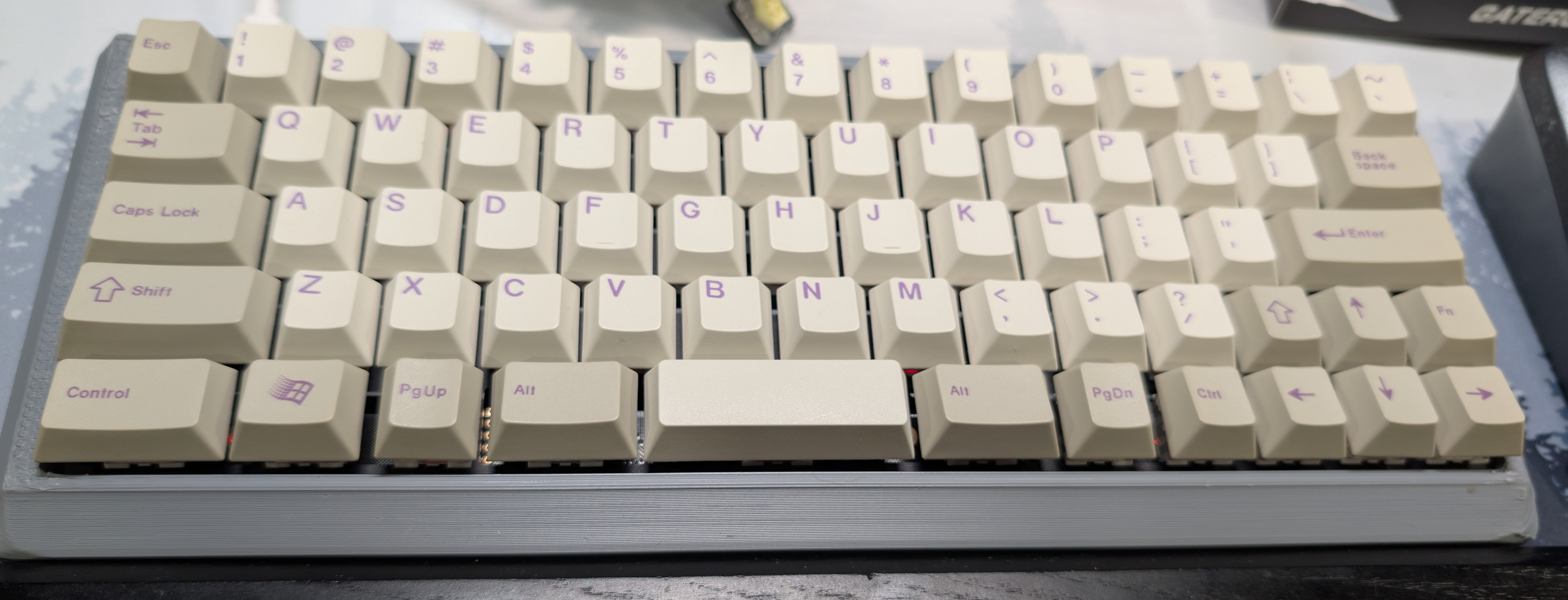
Hand built split backspace and split shift keyboard

Two underappreciated modifications of the standard keyboard layout are the split backspace and the split spacebar. I previously discussed disused or less used keys on the keyboard and wondered why we still need them. Now I’m starting to consider doing something about it.

The split backspace takes the 2u(size of two single keys), and replaces it with two single keys…giving you an extra. This creates one of two choices for those using an ANSI keyboard(as the ISO has the giant Enter key). You can have a 1U(single key) backspace and an extra keyNow…having that key somewhere is important…but do you use it enough to give it such a big key?

You can take a lesson from the Happy Hacker Keyboard layout and you can move the backspace down one row to where the \ | key is, and move the \ | up to a single key on the top row. On that layout, by default, the key is a delete key, although some people switch to backspace. Backspace removes characters to the left of the cursor, delete to the right.

The right size backspace and delete keys aren’t available on all keycap sets…but are certainly options if you look.

The second popular split option is the split spacebar. Spacebars are traditionally 6.25U, though you can get 7U on some keyboards. That is a lot of potentially wasted real estate. As I type this on a traditional spacebar, I’m watching my tendency to use both my left and right thumbs to hit the spacebar…that is one reason why they are so long. So…what about the split? There are a few configuration options you can get if you hunt around. The most common is just a straight split that replaces the spacebar with two half size ones. The advantage of this involves layers…the ability to use left and right spacebar in different key combinations. The second, is either having a smaller spacebar(3U for example), to get more keys on right and left. Or…having a split spacebar with a single key in the middle. Sounds interesting to try in the future. More keys, even if duplicated, leaves more flexibility in future. Also, the large stabilizer to support a full size spacebar is often the loudest key on your keyboard…so there may be sound advantages.

Split shift is a common feature on 65% and smaller keyboards. This involves shrinking the right shift key to add a 1U key to its right. This is usually used as an up arrow or a layer(FN) key depending on the configuration. ISO keys split the left shift to put an extra key to its right, which is usually the  \ | key. There are advantages of even if you don’t use it the way the ISO layout does.

Choice is important. These less popular options aren’t always less popular because they aren’t good ideas…but because the software customization to take advantage of them didn’t override the traditional keyboard layout. With QMK/VIA and other ways of configuring keyboard behavior, having these options means more choice when you customize.

If you can only find the keycaps, that is…


Published on September 2, 2024
Full Post
0 Responses

My Evolving Thoughts on Keyboard Layouts- July 2024 State Of The Keys

Back in March, I expressed my thoughts about different keyboard profiles in general when I was talking about traveling with mechanical keyboards. But I’ve tried a bunch of different keyboards and I’ve developed new thoughts.

To recap, I covered the major sizes…

  • Full-size
  • Tenkeyless(TKL) – A tenkeyless is the same size as a full-size keyboard, but omits the number pad.
  • 75%  – condenses the function keys
  • 65% – usually retains the arrow keys while condensing the other function keys.
  • 60% – removes the function and navigation keys
  • 40% – the smallest keyboard

But even within those, there are not necessarily consistencies. I have several 75% keyboards I’ve tried, and some have 3 function buttons, 5 function buttons 7 function buttons…So, there is no clear definition matching above.

So, let’s talk about the why for a moment? Maybe it is because you want to carry it around, but maybe you want a keyboard for your desk that is smaller. Maybe you have a laptop and you want to use a keyboard with that, as there are few options in laptop keyboards by comparison.

What tradeoffs will you make to get that smaller size? Do you need a numpad? If so…there is an alternative to the traditional full size..the 1800 layout(96%), which cuts function keys but retains the number pad? Are you left handed? Maybe you still want the number pad, but you want a southpaw keyboard, which moves it to the left side? Or get that separate number pad I mentioned.

A good example of the hotswappable 1800 keyboard with VIA programmable support is the Epomaker EK98. There was also the Q5, that Woot recently had on sale.

Let’s get below the TKL, because the form factor there is what you want if you want the full size keyboard but don’t need the number pad. But that still leaves the 6 function keys and the arrows taking up space. What if you dumped those? Do you actually use the arrow and navigation keys(Home/End,Page Down/Page Up)? I talked previously about what keys on a keyboard you might be able to dump.

Once you get down to this size, you also start to have to think about keyboard layers…what combination of keys you want to trigger the keys you jettisoned if you need them. And if you want to invest in a QMK/VIA programmable keyboard to do that over having to install drivers on a computer.

Below TKL, the actual layout seems to be fluid. It may say 75%, or 65%…but…they all look very different. At the 75% level, if you want budget, look at the Hexgear I2 75% hotswappable keyboard. This isn’t programmable, but it has an aluminum frame and PBT keycaps for only $20. It also has all six navigation keys as well as arrow keys. By comparison, what is Keychron doing with their VIA/QMK V2 75%? A home but no end key? Are there studies showing people want to jump to the top over the bottom? Of course, being VIA/QMK…you can change out the function keys to be whatever you want. Epomaker has a sale on their wireless TH80 at $45 right now. You get a knob…then Delete, Home, and Page Up/Page Down.

65% cuts out the function keys..which is fine, I don’t use those much anyway(although I could program them to something else. As mentioned, 65% for me is the best combination for travel. Not too small, not too big. Royal Kludge has a sale on the RK68 hot swap 65% right now, but it isn’t my favorite budget 65% right now. If you can give up programmability, the Shurikey Gear 65 is a great budget hotswap 65%. I also still have my K6 with its aluminum frame. Aluminum is great for home, but not necessarily for traveling due its weight. The Shurikey at $20-25 seems to be a good keyboard you can forget somewhere…and after I left a portable monitor at a hotel in Europe and had to figure out how to get it back…

At 60%, the Skyloong GK61 is my budget pick…QMK/VIA programmable, offers PBT keycaps, wireless capability…

I’ve even warmed to the 40% layout, compiling QMK firmware for an Inland MK47, the cheapest 40% I could find and swapping keycaps and switches…I took this one on a trip and you can get used to it pretty quickly. I do miss number keys at times though.

I continue to limit my searches to Amazon of late…but there are some good deals to be had. There are always better keyboards…do you want aluminum? Gasket mount? Filled with foam? There are all sorts of options to improve the experience of typing, but with a little customization, many budget keyboards can be perfect for needs. You can even, like me, have different keyboards for different use cases…travel, the office, home, to leave at a relative’s house…

Published on July 23, 2024
Full Post
Refurbished HGST Ultrastar enterprise hard drives beside a NAS, with a checklist for SMART testing, surface testing, warranty, and backup strategy.
0 Responses

Are Refurbished Hard Drives Worth It? Buying Used Enterprise Drives for a NAS in 2026

Disclosure: As an Amazon Associate I earn from qualifying purchases. Product links may earn a commission at no additional cost to you.

For most of the years I have been buying hard drives, I bought them new.

For servers and NAS systems, I generally preferred NAS or enterprise-grade drives from Western Digital, Seagate or Toshiba. Storage is one of the last places I want to discover that saving a few dollars was a bad idea.

Then my backup strategy started getting expensive.

I do not want my primary NAS to be the only copy of important files. I want redundant backups, including a copy stored somewhere physically separate from the primary NAS. Once you start duplicating tens of terabytes of storage, buying every drive new becomes a substantial expense.

So I tried something I previously would have avoided: refurbished enterprise hard drives.

I bought a pair through GoHardDrive for one of my secondary backup systems. That machine sits at a family member’s house and receives another copy of data from my primary NAS.

After using refurbished drives this way, I no longer think the answer is simply “never buy used storage.”

But I also would not buy an unknown used hard drive from a random marketplace seller simply because it is cheap.

In 2026, I think refurbished and recertified enterprise drives can be an excellent value for a NAS or backup server—as long as you understand what you are buying, test the drives when they arrive, buy from a seller that actually stands behind them, and never make one drive the only copy of anything important.

Quick Answer: Are Refurbished Hard Drives Worth It?

Yes, refurbished hard drives can be worth buying when:

  • The savings over a comparable new drive are substantial
  • You are buying from a reputable seller
  • The seller provides a meaningful warranty
  • You verify that the interface and sector format work with your system
  • You test the drive before trusting it with data
  • Your storage has redundancy
  • Your important data exists somewhere else too

I particularly like refurbished enterprise drives for:

  • Secondary NAS systems
  • Off-site backup servers
  • Large media libraries that can be recreated
  • Homelab storage
  • Cold or secondary copies of data

I am more conservative about using them when I am building a brand-new primary storage array containing important data, although I would not rule them out there either.

Use Would I Consider Refurbished? My Take
Off-site backup Yes One of my favorite uses
Secondary NAS Yes Excellent place to save money
Plex/media storage Yes Especially if the files exist elsewhere
Homelab Yes Enterprise capacity can be inexpensive
Primary NAS Maybe I would want good redundancy, testing and backups
Only copy of important files No I would not do this with a new drive either

Refurbished vs. Recertified vs. Used Hard Drives

These words are often treated as though they mean the same thing.

They do not necessarily.

Used Hard Drive

A used hard drive is exactly what it sounds like.

Someone used it and is now selling it.

That tells you almost nothing about:

  • How long it was used
  • What workload it handled
  • Whether it has been fully tested
  • Whether every sector has been checked
  • How it was stored
  • How it was shipped

I would be reluctant to buy an ordinary used drive without knowing considerably more.

Seller Refurbished

A seller-refurbished drive has been inspected or tested by the company reselling it.

The important question is what refurbished means to that seller.

Did someone plug it in and check whether it appeared in Windows?

Or did the seller inspect SMART data, perform read/write testing, scan the full disk surface and reject questionable drives?

Those are very different products even if both listings say “refurbished.”

Manufacturer Recertified

A manufacturer-recertified drive has gone through a recertification process associated with the original manufacturer.

That is generally more meaningful to me than a vague marketplace “renewed” label, but it still does not mean the drive is new.

And it does not automatically mean you receive the same warranty that came with the drive when it was originally sold.

ServerPartDeals, for example, distinguishes between manufacturer-recertified and seller-refurbished drives. Its manufacturer-recertified drives have been recertified by the original manufacturer, while the warranty on drives it sells may come from ServerPartDeals rather than the drive manufacturer.

Always check the exact listing.

Recertified Does Not Automatically Mean a Five-Year Warranty

This is something I would pay much closer attention to now than I did when I originally wrote this article.

Warranty terms vary enormously.

For example:

  • Many current GoHardDrive certified-refurbished enterprise listings advertise five-year seller warranties, although some products have shorter warranties.
  • Many ServerPartDeals manufacturer-recertified and seller-refurbished drives currently carry a two-year seller warranty.
  • Seagate says its factory-recertified drives sold through its own program include a six-month warranty.
  • Western Digital says recertified products purchased through its own store currently carry a 12-month manufacturer warranty.

That is why I would never write:

“Refurbished drives come with a five-year warranty.”

Some do. Some do not.

Before buying, I want to know:

  1. Who provides the warranty?
  2. How long does it last?
  3. Does the seller pay return shipping?
  4. Will I receive a replacement or refund?
  5. How long is the initial return period?

A cheap 16TB drive with a real five-year seller warranty is a very different proposition from a cheap 16TB drive sold “as-is.”

Where Do Refurbished Enterprise Hard Drives Come From?

One reason this market exists is the enormous number of drives used in data centers and enterprise storage systems.

Businesses replace equipment for reasons that have nothing to do with an individual drive failing.

A data center may replace an entire generation of hardware because:

  • Higher-capacity drives make the rack space more valuable
  • A storage lease expires
  • Equipment reaches a planned refresh cycle
  • A server fleet is retired
  • Capacity is consolidated
  • The economics of operating older equipment change

The drives coming out of those systems can have years of power-on time.

That does not automatically make them bad drives.

But it absolutely makes their history relevant.

Yes, Some Refurbished Drives Have a Lot of Hours

If you expect a refurbished enterprise drive to arrive with 12 hours of use, you may be disappointed.

GoHardDrive currently has listings that explicitly disclose drives previously used in data centers for several years. ServerPartDeals also sells refurbished drives for which power-on-hour limits may be disclosed.

A drive that spent four or five years in a data center is not remotely equivalent to a new drive.

The question is whether the remaining useful life and warranty justify the price.

For my off-site backup use, that trade can make sense.

If I can buy substantially more redundant storage for the same budget, I am sometimes willing to accept an older drive—especially when failure means replacing the drive and rebuilding another copy rather than losing the only copy of my files.

Does a High Power-On-Hour Count Mean a Drive Is About to Fail?

No.

It also does not mean you should ignore the number.

Hard drives are mechanical devices. Bearings, motors, heads and other components accumulate use.

But there is no magic SMART value where a drive with 19,999 hours is safe and a drive with 20,001 hours is doomed.

A drive with many hours can run for years.

A brand-new drive can fail next week.

I use power-on hours as one piece of information rather than as a prediction of the date the drive will die.

What SMART Data Should You Check on a Refurbished Drive?

SMART—Self-Monitoring, Analysis and Reporting Technology—lets a hard drive report a variety of health and usage information.

At minimum, I would look at:

  • Power-on hours
  • Reallocated sectors
  • Current pending sectors
  • Offline uncorrectable sectors
  • Reported uncorrectable errors, where available
  • Interface CRC errors
  • Overall SMART health

The exact attribute names and meanings vary by manufacturer.

A CRC error can also come from a bad SATA cable or connection rather than damaged platters, so I would not treat every nonzero SMART counter as proof that the drive itself is dying.

SMART is useful.

It is not a crystal ball.

I Would Test a Refurbished Drive Before Putting It Into Service

This is probably the most important practical advice in this article.

I would not receive a refurbished 16TB hard drive, see that it powers on, immediately add it to a production array and start trusting it.

I want to exercise the drive first.

My initial testing would include:

  1. Check the SMART data when the drive arrives.
  2. Run the manufacturer’s or operating system’s extended drive test.
  3. Perform a full-surface read test.
  4. If practical before adding data, perform a full write/read test across the drive.
  5. Check SMART data again afterward.

The important idea is to make the drive do some work while it is still easy to return.

A complete test of a very large hard drive takes a long time. A 16TB, 18TB or 20TB mechanical drive is not going to complete a full-surface exercise in twenty minutes.

Let it run.

I would much rather discover an error on day two than three months after adding the drive to a remote backup server.

Some Refurbished Sellers Do Substantial Testing Before Shipping

This is one reason I care who sells the drive.

ServerPartDeals currently describes a four-stage testing process that includes:

  • Physical inspection
  • SMART analysis
  • Read/write and throughput testing
  • A full sector scan

That is much more reassuring than a marketplace seller saying only “tested working.”

I would still test the drive myself after shipping.

Hard drives do not particularly enjoy being thrown around by delivery companies.

Packaging Matters More Than It Does for Most Computer Parts

A hard drive can be perfectly healthy when it leaves the seller and damaged by poor shipping.

This is another reason I prefer sellers that specialize in drives and server equipment.

A bare hard drive bouncing around inside an oversized cardboard box with one air pillow is not how I want storage shipped.

I want:

  • An anti-static bag
  • Substantial shock protection
  • A drive immobilized inside the package
  • A box appropriate for a heavy mechanical device

When a refurbished drive arrives, I inspect both the drive and packaging before putting it into service.

GoHardDrive vs. ServerPartDeals

These are the two sellers I would look at first if I were shopping for refurbished enterprise hard drives today.

GoHardDrive

GoHardDrive has been around for years and sells drives through its own site as well as marketplaces including Amazon.

I have personally bought refurbished drives from GoHardDrive.

What makes many of its listings attractive is the warranty. A number of its current certified-refurbished enterprise drives include five-year seller warranties.

The warranty varies by listing, so check rather than assume.

The 10TB HGST Ultrastar drive from my original article is still available through the same tracked Amazon listing:

Check the current price of the 10TB refurbished HGST Ultrastar on Amazon

I would still compare it with current new-drive pricing before buying. The refurbished market changes constantly, and a bargain at one price can be a poor deal after new drives go on sale.

ServerPartDeals

ServerPartDeals is another seller I would seriously consider.

It separates listings into categories including:

  • New
  • Manufacturer recertified
  • Seller refurbished

I particularly like that distinction because “refurbished” on the wider internet can mean almost anything.

ServerPartDeals also publishes details of its drive-testing and packaging procedures.

Many of its current refurbished and manufacturer-recertified drives carry a two-year seller warranty.

I have not personally bought drives from ServerPartDeals, so I am not going to turn that into a firsthand endorsement. It is simply one of the sellers I would compare based on its specialization, testing process and reputation.

Should You Buy Refurbished Enterprise Drives or New NAS Drives?

There is no automatic winner.

I would compare the actual cost per terabyte.

Suppose you are deciding between:

  • A new NAS drive with a full manufacturer warranty
  • A manufacturer-recertified enterprise drive
  • A seller-refurbished enterprise drive

If the refurbished drive costs 90% as much as new, I am probably buying new.

If it costs roughly half as much and comes from a seller I trust with a meaningful warranty, the decision gets much more interesting.

The lower cost can allow you to buy:

  • More capacity
  • An additional parity drive
  • A complete second backup
  • An off-site backup server

That last option is what changed the calculation for me.

I would rather have multiple copies of my important data on reasonably reliable hardware than spend the entire budget making one copy as expensive as possible.

Refurbished Enterprise Drives Can Be Very Different From NAS Drives

A Seagate Exos, WD Ultrastar or Toshiba MG enterprise drive was designed for a different environment from a typical desktop hard drive.

That can be an advantage.

Enterprise models are designed for heavy workloads and continuous operation.

But they can also be:

  • Louder
  • More noticeable when seeking
  • Higher power consumers
  • Warmer
  • Less pleasant in a NAS sitting beside your desk

I am much less concerned about drive noise in a basement server rack than in a Synology sitting three feet from my bed.

Know where the NAS will live.

Check SATA vs. SAS Before Buying

This is an easy way to buy a very cheap drive that you cannot use.

Enterprise drives are commonly available with either SATA or SAS interfaces.

Most ordinary PCs and consumer NAS boxes expect SATA hard drives.

A SAS drive does not simply plug into a standard SATA controller because the connectors look similar.

If your server has a proper SAS HBA or controller, SAS drives may be excellent options.

If you are putting drives into an ordinary Synology, UGREEN, TerraMaster or consumer motherboard, you probably want SATA unless you know otherwise.

Check before ordering.

Watch for 4Kn vs. 512e Drives

Enterprise storage listings may also identify drives as:

  • 512e
  • 4Kn

These refer to how the drive exposes its sector format to the operating system.

Modern storage systems can often handle 4K sectors, but compatibility can become an issue with older controllers, operating systems and some NAS appliances.

If you do not know whether your hardware supports 4Kn, a 512e SATA model is generally the simpler purchase.

This is another reason not to choose a drive based only on the lowest $/TB number.

What Is SATA Power Disable, and Why Won’t My Refurbished Drive Spin Up?

There is another wonderfully obscure enterprise-drive trap.

Some newer SATA enterprise drives support Power Disable, often called PWDIS.

On those drives, applying 3.3 volts to a particular SATA power pin tells the drive to remain powered off.

Some older desktop power supplies provide 3.3V on that pin even though the system has no idea what Power Disable is.

The result:

You install the perfectly healthy drive and absolutely nothing happens.

ServerPartDeals specifically warns buyers about this and supplies an adapter with some affected drives.

If a newly arrived enterprise SATA drive will not spin up in older hardware, check PWDIS compatibility before declaring the drive dead.

Check CMR vs. SMR Too

For RAID, ZFS and general NAS use, I prefer CMR drives.

SMR—shingled magnetic recording—can provide perfectly useful storage in the right workload, but its write behavior can create complications during sustained writes and array rebuilds.

Most large enterprise data-center drives you are likely to encounter in this market are CMR, but I still verify the exact model number before buying.

Model numbers matter more than marketing names.

Are Helium-Filled Refurbished Hard Drives a Problem?

Not inherently.

Many high-capacity enterprise drives use helium inside the sealed drive enclosure to reduce aerodynamic resistance.

There is nothing automatically wrong with buying one used or recertified.

But I would treat any SMART warning or indication of a sealing problem as a reason to investigate rather than shrugging because the drive appears to work.

Again, this is where buying from a seller with a real return policy is useful.

Should You Put Refurbished Drives in a Primary NAS?

I would consider it, but my standards would be higher.

If I were building a four- or six-drive primary NAS from refurbished enterprise drives, I would want:

  • A reputable source
  • A meaningful warranty
  • Full testing before deployment
  • Redundant storage
  • SMART monitoring
  • Regular scrubs where supported
  • A UPS and graceful shutdown
  • At least one completely separate backup

At that point, a refurbished-drive array can be a perfectly rational way to obtain a lot of capacity.

But if the savings were modest, I would still lean toward new drives for the primary NAS.

Our 2026 guide to the best home NAS systems covers the larger decision between Synology, UGREEN, TerraMaster and building your own NAS.

Refurbished Drives Make Even More Sense for a Backup NAS

This is where I became comfortable with them.

My primary NAS holds the active copy of my files.

I wanted another machine at a different physical location holding another copy.

That changes the risk calculation substantially.

If a drive in the remote backup server fails:

  1. The primary data still exists.
  2. The redundant backup system can identify the failed drive.
  3. I replace the drive.
  4. The backup copy is rebuilt.

That is inconvenient.

It is not a data-loss catastrophe.

Using refurbished enterprise drives allowed me to create more backup capacity for considerably less money than duplicating my primary storage entirely with new NAS drives.

For me, that is a good trade.

RAID Does Not Make Refurbished Drives Safe

This needs to be said every time storage comes up.

RAID is not a backup.

Neither is RAIDZ. Neither is a mirror.

Redundancy can protect you against a drive failure.

It does not automatically protect you against:

  • Accidental deletion
  • Ransomware
  • Filesystem corruption
  • A bad software update
  • Theft
  • Fire
  • Flood
  • Electrical damage
  • Losing the entire NAS

If the data is important, it should exist somewhere else.

This is true whether your drives are five years old or five minutes old.

A New Drive Can Fail Too

Buying new improves some parts of the equation.

You know the drive has not already spent years spinning in somebody else’s server. You usually receive the full original warranty. You have a known ownership history.

What you do not receive is a guarantee that the drive cannot fail.

This is why I do not design storage around predicting which individual disk will live longest.

I design it assuming any disk can eventually fail.

Then the question becomes whether the system survives that failure without losing data.

Don’t Buy All Your Safety in the Hard Drive

Suppose you have $1,000 to spend on storage.

There are situations where:

$1,000 of new drives in one machine

is less useful to me than:

$700 of drives in the primary system plus $300 toward a geographically separate backup.

The exact numbers will vary.

The principle does not.

Storage reliability is a system problem rather than a shopping problem.

You cannot buy a hard drive so expensive that backups become unnecessary.

Don’t Forget Power Protection

A storage server also depends on everything around the drives.

I use UPS battery backup for my NAS and networking equipment. I have experienced an unsafe shutdown during a power outage, and that made me considerably less casual about power protection.

A UPS does not need to operate the NAS all afternoon.

Its most important job may simply be to ride through a brief interruption or give the server enough time to shut down cleanly.

See our guide to the best UPS systems for a NAS and home network closet.

What NAS Software Should You Use With Refurbished Drives?

The drive does not particularly care whether you use TrueNAS, Unraid or OpenMediaVault.

But the storage architecture matters.

I currently use TrueNAS, which gives me ZFS checksums, scrubs, snapshots and redundant pool configurations.

Unraid is especially attractive if you are accumulating drives of different capacities over time. OpenMediaVault provides a lighter Debian-based NAS platform.

We compare all three in our updated guide to the best NAS software for home use.

My Checklist Before Buying a Refurbished Hard Drive

Before clicking Buy, I would check every one of these:

Check Why It Matters
Seller I want a company that specializes in drives and honors returns.
Condition Used, seller refurbished and manufacturer recertified are different.
Warranty Check who provides it and for how long.
SATA or SAS A cheap SAS drive is useless if your system only accepts SATA.
512e or 4Kn Make sure your controller and NAS support the sector format.
CMR or SMR I prefer CMR for NAS and array workloads.
Power Disable Some enterprise SATA drives need an adapter with older power supplies.
Physical size Most enterprise HDDs are 3.5-inch drives.
Noise and power Enterprise drives may be less pleasant in a quiet room.
Price per TB Compare against new-drive sale prices, not MSRP.
Return window You want time to perform a complete test.

What I Would Do When the Drive Arrives

  1. Photograph the packaging if anything looks damaged.
  2. Inspect the connectors and enclosure.
  3. Confirm the model and capacity are what I ordered.
  4. Read the SMART information.
  5. Check the reported power-on hours.
  6. Run an extended SMART test.
  7. Perform a full-surface test.
  8. Check SMART again for new errors.
  9. Only then add the drive to the storage system.
  10. Continue monitoring it after deployment.

A refurbished-drive bargain does not need to be treated like fragile contraband.

It just deserves more scrutiny than a new drive pulled from a sealed retail box.

When I Would Buy New Instead

I would probably buy new when:

  • The price difference is small
  • The NAS will contain the primary copy of important data
  • Noise and power efficiency matter a lot
  • I want the full manufacturer’s warranty
  • I need a particular current-generation model
  • I am building a small system where drives are not a large part of the total budget

A two-bay home NAS with two drives is a different economic problem from a backup server requiring eight large disks.

When I Would Buy Refurbished

I become much more interested when:

  • I need a lot of capacity
  • The savings per terabyte are substantial
  • The drive has a good seller warranty
  • The data is already backed up elsewhere
  • I am building a secondary or off-site NAS
  • I can easily replace and rebuild a failed drive
  • I am comfortable testing and monitoring the hardware

Frequently Asked Questions About Refurbished Hard Drives

Are refurbished hard drives reliable?

They can be. A properly tested refurbished enterprise drive may provide years of additional service, but it has an unknown or partially known prior history and often has substantial power-on time. Buy from a seller with a meaningful testing process and warranty, and design your storage assuming any individual drive can fail.

Are manufacturer-recertified drives better than refurbished drives?

I generally give manufacturer recertification more weight than an undefined seller-refurbished label, but the seller’s testing and warranty still matter. A manufacturer-recertified drive sold with a strong seller warranty may be very attractive.

How many power-on hours are too many for a used hard drive?

There is no universal cutoff. Power-on hours are useful context, but they cannot tell you exactly how much life remains. I would consider the hours together with SMART health, full-surface testing, price, warranty and the role the drive will serve.

Should I buy refurbished drives for TrueNAS?

You can. I would thoroughly test them first, use an appropriate redundant ZFS configuration and maintain an independent backup. TrueNAS cannot make an unreliable disk reliable, but ZFS provides useful integrity checking, scrubbing and redundancy features.

Can I mix new and refurbished drives in a NAS?

Yes, assuming the drives are compatible with your storage layout and hardware. The NAS does not require every disk to have the same ownership history.

Should refurbished drives be used for backups?

I think this is one of their best uses. My own refurbished enterprise drives were purchased for a geographically separate backup system. The important requirement is that the backup drive itself must not become the only copy of the data.

Is a five-year seller warranty the same as a five-year manufacturer warranty?

No. If a reseller promises the warranty, that reseller—not Seagate, Western Digital or Toshiba—may be responsible for replacing the drive. I care about the reputation and longevity of the seller when evaluating that promise.

Can I use a SAS enterprise hard drive in my desktop or NAS?

Usually not unless the system has SAS support. Most consumer motherboards and NAS appliances use SATA. Verify the interface before ordering.

Why won’t my enterprise SATA drive power on?

Some enterprise drives support SATA Power Disable. Older power supplies can apply voltage to the Power Disable pin and keep the drive switched off. An appropriate power adapter or compatible backplane can solve this particular issue.

Are enterprise drives too loud for home use?

They can be noticeably louder than quieter consumer and NAS models, especially during seeks. I have little concern about that in a remote backup server or basement rack, but I would think harder before filling a NAS sitting on my desk with enterprise drives.

Would I Buy Refurbished Hard Drives Again?

Yes.

I would not use that answer as an excuse to buy the cheapest used disk I can find.

What changed my mind was realizing that drive reliability is only one part of data reliability.

I care about:

  • The drive
  • The seller
  • The warranty
  • The testing
  • The storage layout
  • The monitoring
  • The backup
  • Where that backup physically lives

A new hard drive used as the only copy of irreplaceable data is a bad storage plan.

A carefully tested refurbished enterprise drive sitting in a redundant off-site backup system can be part of a very good one.

For me, the attraction is not that refurbished drives are somehow just as good as new drives in every respect.

They aren’t new.

The attraction is that they can make large amounts of redundant storage dramatically more affordable.

When that lower cost allows me to keep another complete copy of my data somewhere else, I am willing to make the trade.

More Home NAS and Storage Guides

Published on July 21, 2024
Full Post

Get New Posts By Email